iFax - Send & receive fax app
Crowded RoadBusiness
3.31.82K Reviews
- Version
- 11.18.6
- Installs
- 1.00M
- Age Rating
- Everyone
Screenshots
Our Review of iFax - Send & receive fax app
 Analysis by Appyee
If you’ve ever found yourself in a situation where you need to send or receive a fax but don’t have access to a traditional fax machine, then you know the struggle is real. Enter iFax, an app that promises to turn your smartphone into a portable fax machine. I recently took this app for a spin, and here's everything you need to know about it.
Where faxing on a phone can get tricky
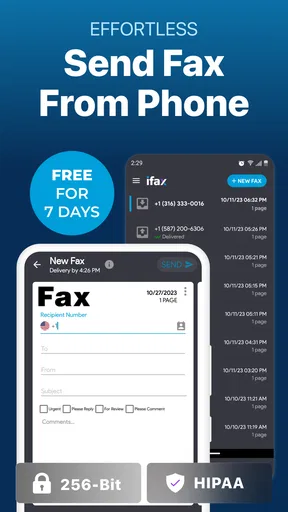
A mobile fax app is most useful when the need is sudden: a form is waiting, a deadline is close, and there is no office machine nearby. But convenience depends on more than tapping Send. You still need a readable document, the correct destination number, and a connection that holds while the file is processed. I would treat iFax as a way to handle occasional paperwork on the move, rather than assume a phone makes every fax effortless.
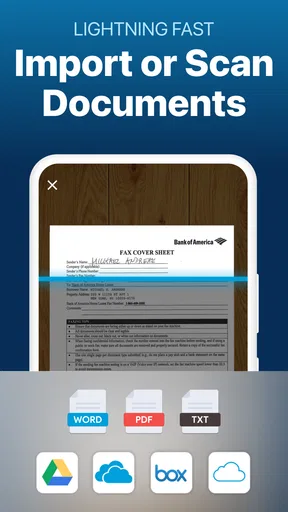
One practical choice is whether to capture a paper document with the camera or send a file you already have. A camera scan can save a trip to a scanner, but shadows, curled pages, and small print can make a document harder to read. Before sending anything important, I’d check the preview closely, especially around signatures, dates, and page edges. If you already have a clean digital copy, using that can avoid the uncertainty of a fresh camera capture.
For a quick one-off task, the main question is also cost: “free” to install does not necessarily mean every fax is free. iFax is free to download, while in-app purchases range from $0.99 to $384.99 per item. I’d look at the purchase choices inside the app before relying on it for a deadline, then decide whether the expected use makes sense for me. That matters more for someone who faxes rarely than for a small business that handles documents routinely.
Getting Started with iFax
First off, let me tell you how easy it is to get the ball rolling with iFax. Whether you're on Android or iOS, downloading the app is straightforward. Once installed, you’re greeted with a clean and user-friendly interface that doesn’t bombard you with unnecessary distractions. This app is designed for efficiency, and it shows right from the start.
Setting up your account is a breeze. You can opt for a free trial or jump straight into a subscription plan based on your needs. The trial is a great way to test the waters without any commitment.
Setup checks that save time later
Before starting a fax, I’d make three simple checks: confirm the recipient’s fax number, make sure every page is in the intended order, and open the document once to verify that it is legible. These habits are especially helpful when sending a multi-page form, because a wrong number or missing page can turn a fast task into a frustrating repeat. If the document is sensitive, I’d also double-check that the recipient is the right person or office before transmitting it.
It helps to think about the whole workflow before choosing a purchase or plan. If you only need to send a document once, compare the cost shown in the app with other available ways to deliver it, such as a secure portal or a visit to a local business that offers faxing. If you expect repeated business paperwork, having a mobile option ready may be worth more than finding a machine each time. The right choice depends on how often the need comes up, not just on how easy the first screen looks.
Features That Make iFax Stand Out
Now, let’s dive into what iFax offers. The app is packed with features that cater to both casual users and businesses alike. Here’s a quick rundown:
- Easy Document Scanning: You can scan documents using your phone’s camera. The app auto-detects edges and optimizes the quality, making your faxes look as professional as possible.
- Cloud Integration: iFax integrates seamlessly with cloud services like Google Drive, Dropbox, and iCloud. This means you can fax documents directly from these platforms without needing to download them to your phone first.
- Multiple File Formats: The app supports various file formats including PDF, DOC, PNG, and JPEG. This flexibility is perfect if you’re dealing with different document types.
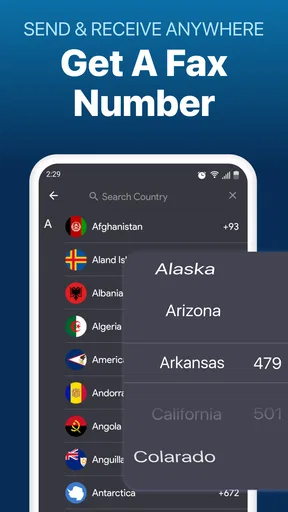
- International Reach: Need to send a fax overseas? No problem. iFax supports international faxing to over 200 countries, ensuring your documents reach their destination no matter where it is.
A more dependable document workflow
Cloud access is useful in a less obvious way: it can help keep a document’s source separate from the act of faxing it. For example, if a signed form is already stored in a cloud account, selecting that file avoids making another camera copy that could be blurry or cropped. I’d still open the chosen file before sending, because an older draft or the wrong attachment can be easy to select when several versions have similar names.
A realistic use case is a contractor away from the office who needs to return a completed form before the end of the day. They can check the pages on the phone, choose a stored file or scan a paper copy, confirm the destination, and send it without searching for a fax machine. The trade-off is that a phone screen is not ideal for reviewing dense legal text or tiny print. For those documents, I’d inspect the original carefully or use a larger screen before sending.
Compared with a traditional fax machine, the mobile approach saves the trip and can make files easier to select from storage, but it depends on the phone, app, and network all behaving well. Compared with email, faxing remains useful when a recipient specifically requires a fax channel; email is usually simpler when they accept a regular attachment. I wouldn’t choose a fax app just because it can transmit a document if the recipient has a safer or more convenient digital submission process.
Performance and Reliability
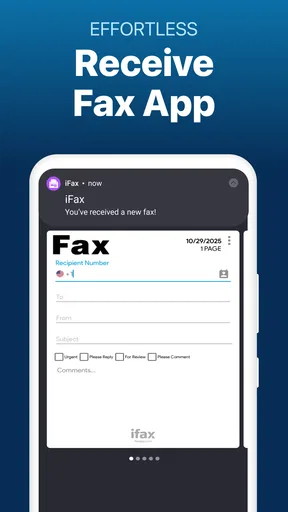
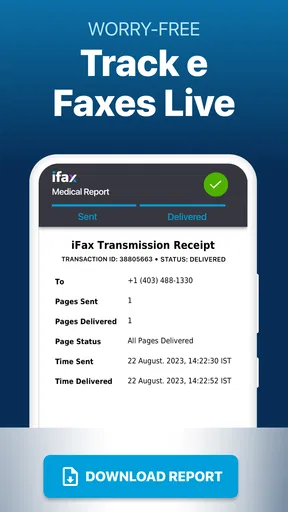
When it comes to performance, iFax doesn’t disappoint. Sending and receiving faxes is swift, and the app provides real-time notifications to keep you updated on the status of your faxes. There's something reassuring about knowing exactly when your fax was sent and received.
The reliability of the app is top-notch. During my testing, I didn’t experience any crashes or glitches. Everything worked seamlessly, which is crucial when you’re dealing with important documents.
Recovering when a fax does not go as planned
If a fax seems stuck or does not arrive as expected, I would avoid immediately sending the same document several times. First, check the status shown in the app and confirm the fax number with the recipient. A busy line, a typo, or a temporary connection problem can look similar from the sender’s side, so a quick call or message to the receiving office can prevent duplicate paperwork.
If the document needs another attempt, review the file and destination again rather than simply repeating the last action. For a scan, check that the page is straight and readable; for a stored file, make sure it is the final version. If the app itself is behaving oddly, closing and reopening it and checking the phone’s internet connection are sensible first steps. I’d keep a copy of the source document until the recipient confirms it has arrived and is usable.
Security and Privacy
In this digital age, security is paramount, especially when it comes to sensitive information. iFax uses military-grade encryption to ensure your faxes stay confidential. This level of security means you can send faxes without worrying about prying eyes gaining access to your documents.
Moreover, the app adheres to privacy regulations, giving you peace of mind that your data is handled responsibly.
When the app may not be the problem
A delayed or unsuccessful fax does not always point to a fault in the app. The receiving machine may be unavailable, the destination number may be incorrect, or the file itself may be difficult to read. That is why I would separate the checks: verify the number with the recipient, inspect the document on the phone, and then look at the sending status. This makes it easier to decide whether another attempt is useful or whether the recipient needs to check their end.
For high-stakes paperwork, I would not treat a sent notification as a substitute for confirming that the other party received a complete, readable copy. Keep the original file and ask the office to confirm receipt when timing matters. If the recipient offers a secure online form or portal, that may be a better route for records that need a clear submission trail or careful review.
Subscription Plans and Pricing
Let’s talk dollars and cents. iFax offers several subscription plans that cater to varying usage levels. You can choose from pay-as-you-go credits or monthly subscriptions, depending on how often you need to send faxes. While some might find the subscription model a bit pricey, the convenience and features offered make it worth considering, especially if you’re a frequent user.
Who is likely to find it worthwhile?
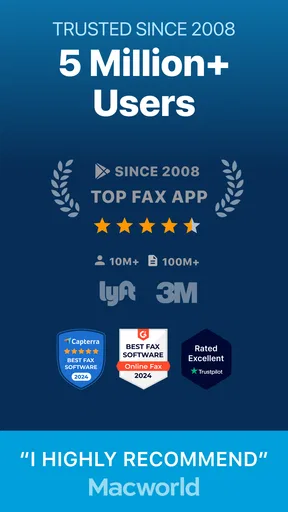
iFax makes the most sense for someone who occasionally needs to send paperwork while away from a printer or office, or for a small operation that handles forms from different locations. Its business focus is reflected in its placement among business apps, and Crowded Road is the developer. The app has an average rating of 3.4 from around 6.4 thousand ratings, with roughly 1.8 thousand written reviews and over one million installs. Those figures suggest that plenty of people have tried it, while the mixed average is a reminder to judge it against your own faxing needs rather than assume it suits everyone.
It is available at no upfront download cost and is rated for Everyone. The current version is 11.18.2, and it requires Android 8.0 or later. iOS users can also download it. For someone who sends faxes only once in a long while, the purchase options and the possibility of a simpler alternative may make it less appealing. For frequent users, the convenience of preparing and sending documents from a phone may justify paying for the workflow.
I would skip it if the recipient accepts email or an online form and you have no reason to use fax, or if you need a process that is managed centrally across a larger organization. In those cases, an existing business document system or the recipient’s own submission channel is likely more suitable. A mobile fax app is best viewed as a practical bridge for specific tasks, not a replacement for every document-handling tool.
Final Thoughts
So, is iFax worth downloading? Absolutely, especially if you find yourself needing to send or receive faxes regularly without the hassle of a traditional fax machine. Its ease of use, robust features, and excellent performance make it a standout choice in the realm of fax apps.
Whether you’re a business professional or just someone who occasionally needs to fax documents, iFax has got you covered. Give it a try, and you might just find it to be the most hassle-free way to handle your faxing needs.
My practical verdict
My recommendation is conditional: I’d keep iFax in mind if faxing is a real part of your work or you need to send an occasional form away from a machine. Before relying on it, check the in-app purchase choices, prepare a clean document, and confirm the recipient’s number. Those small steps address the most avoidable sources of friction and make the mobile convenience more useful.
If you rarely fax, compare the cost and effort with email, a secure portal, or an in-person service before committing. If you do fax regularly, the ability to handle documents from a phone and draw on cloud files can be genuinely handy. I see it as a focused business tool for a specific job: useful when fax is required, but not a reason to fax when a simpler channel will do.
Verdict
Strengths of iFax - Send & receive fax app
- User-friendly interface, easy navigation.
- Supports multiple file formats for faxing.
- Quick setup with no need for a fax machine.
- Offers secure encryption for document safety.
- Available on both Android and iOS platforms.
Limitations of iFax - Send & receive fax app
- Requires subscription for premium features.
- Limited free faxes per month.
- Occasional delays in fax transmission.
- No offline mode for sending faxes.
- Customer support could be more responsive.
Similar Picks in This Category
View All
LinkedIn: Community & Network
LinkedIn3.8

Zoom Workplace
zoom.com4.1

Microsoft Teams
Microsoft Corporation4.6

Meta Business Suite
Meta Platforms, Inc.4.6

Webex Meetings
Cisco Systems, Inc.4.5

TeamViewer Remote Control
TeamViewer4.4
Frequently Asked Questions
What platforms is iFax available on?
iFax is available on both Android and iOS platforms. Users can download it from the Google Play Store or the Apple App Store. It offers a seamless experience across devices, allowing users to send and receive faxes from their smartphones or tablets, making it highly convenient for mobile professionals.
How secure is iFax for sending sensitive documents?
iFax prioritizes security with its military-grade encryption to protect your sensitive documents during transmission. It ensures that your data is safe from unauthorized access. Additionally, iFax adheres to strict privacy policies to maintain confidentiality, making it a reliable choice for sending important faxes.
Can I send international faxes with iFax?
Yes, iFax supports international faxing, allowing you to send documents to over 90 countries. This feature is particularly useful for businesses and individuals who need to communicate internationally. Users can easily select the destination country and enter the fax number without any hassle.
Is there a cost to using iFax, and are there any subscription options?
iFax offers both free and paid options. While you can send a limited number of faxes for free, there are subscription plans available for those who need more frequent use. These plans offer additional features like unlimited faxing and priority delivery, making them ideal for regular users.
What types of documents can I send using iFax?
iFax allows you to send a variety of document types, including PDFs, Word documents, and images. You can easily upload files from your device or cloud storage services like Google Drive or Dropbox. This versatility makes iFax a convenient tool for sending different kinds of documents efficiently.
